ADVERTISEMENT
Are your Rivals controls comfortable enough to use consistently?
A control review can reveal awkward reaches and accidental inputs. Choose an option below to explore the guide.
Comfort Is a Useful Starting Point for Consistency

ADVERTISEMENT
Which Control Issue Happens Most Often?
ADVERTISEMENT
Make Roblox Rivals Controls More Comfortable: A Device-by-Device Review
When firing feels inconsistent in Roblox Rivals, the first explanation you find may be an autoshoot trick. Before chasing that claim, look at how you interact with your device. A button that is difficult to reach, a display blocked by your hands, or an uncomfortable sensitivity choice can make ordinary actions harder to repeat.
This guide focuses on reviewing supported controls and your physical setup. It does not promise that a particular layout is available on every platform or that changing settings guarantees better results. Use the options shown in your current official game and device, then judge them by comfort and clarity. Small, understandable adjustments are easier to evaluate than a complete setup copied from someone else.
Identify the Action That Feels Difficult
Describe the problem before changing anything. Perhaps you accidentally trigger another action when trying to fire, lose sight of the target behind your thumb, or struggle to make a small aiming adjustment. Those observations point toward different questions. 'My controls are bad' is too broad to guide a useful experiment.
Choose one problem that happens repeatedly, not a single frustrating moment. Notice when it occurs and which hand or input is involved. You can make a short note after play rather than analyzing every exchange. The purpose is to locate a manageable issue, not to turn a game session into continuous self-criticism.
Review Touch Controls on the Device You Use
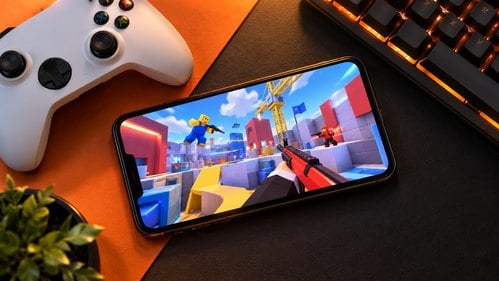
On a touch device, consider whether your hands obscure important parts of the screen and whether commonly used controls are within comfortable reach. If the game provides layout or size adjustments, inspect those options and change one at a time. Do not assume that a layout shown on a larger screen will work equally well on a smaller one.
Keep your device supported comfortably rather than gripping it more tightly to compensate for an awkward reach. If a control cannot be adjusted through supported settings, recognize that limit and consider a different supported input arrangement if available. Avoid unofficial overlays or automation presented as the only way to make the game usable.
Check Controller or Keyboard Arrangements Separately
A controller has different constraints from a touch screen. Review the displayed button assignments and any supported sensitivity options, then check whether you can perform common actions without an uncomfortable grip. If a button behaves unexpectedly, distinguish a game setting from a possible hardware or connection issue before changing several controls.
For keyboard and mouse play, consider desk space, pointer movement, and the keys you repeatedly reach for. Use supported rebinding options where available. A professional player's arrangement is not automatically suitable for your hands or equipment. Start from a setup you understand and adjust it around the specific action that feels difficult.
Keep a Baseline You Can Restore
Write down or capture the original values before an experiment. That gives you a reliable way to return if the new setting is worse. Label what you changed and why, such as reducing an accidental input or making a small aiming movement easier. A clear reason helps prevent random adjustments after every disappointing match.
Test for a short period under reasonably similar conditions. Keep other settings stable and take a break if your hands or attention become tired. You are comparing control behavior, not proving a statistical performance improvement. If the difference is unclear, restore the baseline and try again another time instead of layering another change on top.
Separate Comfort From Competitive Claims
A setting may feel more comfortable without immediately changing match results. That can still be a useful outcome. It may also offer a tradeoff, such as making one movement easier while another feels less precise. Notice both effects rather than deciding the setting is universally good or bad after one session.
Do not assume that supported accessibility or comfort features are the same as outside tools that automate play. Check the game and platform rules when a suggestion involves additional software. A tutorial's use of the word accessibility does not establish permission for an exploit. Seek official guidance when you cannot determine whether a proposed method is supported.
Build a Setup You Can Explain
After testing, keep only changes with a clear purpose. You should be able to say what each adjustment does and why you prefer it. If you cannot explain a change, consider whether it belongs in your setup yet. A smaller set of understandable choices is easier to maintain when an update changes the interface.
Review the arrangement when you switch devices or notice a recurring discomfort, rather than constantly searching for a new optimal configuration. Supported settings are tools for making interaction manageable. They work alongside practice, positioning, and attention; they do not remove the need to learn the game. Stop and rest if play causes pain, and seek appropriate advice if symptoms persist.
Separate Physical Reach From Visual Clarity
A control can be easy to press while covering an area you need to see. When the game supports layout changes, inspect both problems separately. First test whether your fingers can reach the actions without an uncomfortable stretch. Then check whether resting fingers or buttons obscure the part of the screen you use for aiming. Keep changes modest so you can identify their effect.
On a controller or keyboard, review accidental presses and the order of actions instead of copying a touch layout. Write down one troublesome sequence, such as moving while switching an action, and practice it slowly. If the game does not offer the remapping you want, consult official support rather than assuming an external automation utility is acceptable. Comfort improvements should remain within the controls the game permits.
Separate Physical Reach From Visual Clarity
Input method | Issue to observe | Supported change to investigate |
|---|---|---|
Touch | Reach and screen obstruction | Layout or size options, if offered |
Controller | Accidental inputs during a sequence | Available in-game mapping and sensitivity |
Keyboard and mouse | Awkward reach or inconsistent aim movement | Permitted bindings and sensitivity |
Any device | Fatigue after repeated attempts | Shorter sessions and a comfortable position |
Frequently Asked Questions
Q1: Should I copy a creator's exact sensitivity?
A1: Use it only as information, not a guaranteed solution. Device, input method, and personal comfort differ, so test supported changes against your own baseline.
Q2: Can I move every touch button?
A2: That depends on the options available in your current game version and device. Check the actual settings rather than assuming a tutorial applies universally.
Q3: How many settings should I change at once?
A3: One is a useful starting point. It makes the effect easier to recognize and the original setup easier to restore.
Q4: Is an outside tool acceptable if it claims to improve accessibility?
A4: The claim alone does not establish permission. Verify support and rules through official channels, especially when a tool automates actions or modifies the client.
Make the Next Adjustment Specific
Choose one recurring difficulty, test one supported change, and keep the result only if it helps. A comfortable, understandable setup is a stronger foundation than an unexplained shortcut.